 moss image
moss image Kling 3.0 for Directed Scenes, Image Transitions, and Sound
Develop a shot around a visible intention: a character notices something, a product changes position, or a scene reaches a planned ending. moss image Kling 3.0 on Moss Image offers text and image generation, Standard and Pro choices, and optional generated audio for building that moment.
Video workspace
The wooden elevator opens
28/45View prompt
Five-second continuous frontal shot of closed wooden elevator doors opening slowly to reveal one adult woman standing inside. Keep the camera fixed at eye level and the woman relaxed, facing forward. Preserve a simple, balanced composition with warm wood grain and soft interior light. End with the doors open and the woman still standing.
Introduction
What Is moss image Kling 3.0?
moss image Kling 3.0 is a video generation model available on fal through Standard and Pro text-to-video and image-to-video endpoints, with support for native audio generation.
Create from a description or direct between images
A text request gives moss image Kling 3.0 the scene through words, while an image request begins with a supplied first frame and can include a last frame. These routes support different stages of development.
The moss image Kling 3.0 controls available on Moss Image
The workspace lets you choose Standard or Pro, select text or image mode, and set a duration from 3 to 15 seconds. Generated audio can be switched on or off. Use moss image Kling 3.0 with those visible controls and a focused prompt, then assess the resulting clip as a moving scene rather than assuming the model name guarantees a finished production.
How to use
How to Direct a moss image Kling 3.0 Clip
- PromptSTEP 1
Choose the tier and input mode
Select moss image Kling 3.0 on Moss Image, choose Standard or Pro, and use text or image mode. Prepare a first frame and optional last frame for image-led work.
- ModelKling 3.0720p16:96sPromptSTEP 2
Describe the visible event
Tell moss image Kling 3.0 what happens, where the camera is, and how the shot should finish. Give the movement a clear purpose and identify the elements that should stay consistent.
- First frameLast frame
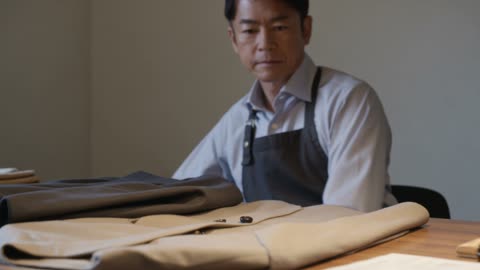 0.0s
0.0s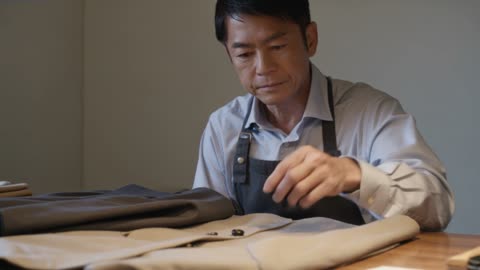 3.0s
3.0s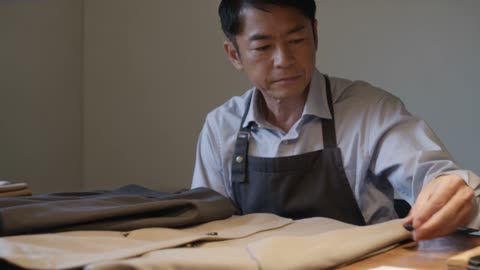 5.4sSTEP 3
Set duration and sound
Choose a moss image Kling 3.0 duration from 3 to 15 seconds and set generated audio on or off. When enabled, include the intended sound in the brief and review credits.
- Create a six-second continuous shot of an adult tailor at a worktable noticing a loose button. The tailor pauses, looks down, and gently places the button beside the garment. Keep the viewpoint steady and the action readable. Soft workshop light. With audio enabled, include quiet fabric movement and a small button tap. No speech or scene cuts.DownloadSTEP 4
Judge the take as a whole
Play the moss image Kling 3.0 result from start to finish. Check the transition and any generated audio, then refine one concrete issue rather than rewriting every part of a useful scene.
Features
Choose a moss image Kling 3.0 Tier Around a Clear Objective
Standard and Pro are distinct service options, not substitutes for a useful brief. Give either moss image Kling 3.0 selection a specific visual task before evaluating its result.
Keep the comparison about the same scene
When comparing the two choices, preserve the subject, action, duration, and audio setting. Otherwise a more interesting composition can distract from what actually changed. Review each moss image Kling 3.0 candidate against the assignment: does the movement communicate the right idea, and does the subject remain recognizable? Make the choice from the returned footage and displayed credits rather than an assumed ranking.
Define success for the moss image Kling 3.0 scene
For a clothing scene, the priority might be the drape of a sleeve; for a package reveal, it might be the lid’s movement. Define that objective before choosing a moss image Kling 3.0 tier.
Set the Pace of a moss image Kling 3.0 Shot
The duration range lets you work on an immediate gesture or a longer reveal. Pla moss image Kling 3.0 around how the action unfolds, not simply how many seconds are available.
Give short takes one decisive event
For a three-second shot, place the important information near the beginning. A character can glance toward an opening door, or a fabric panel can settle into position. Give moss image Kling 3.0 one action that resolves clearly.
Use longer takes for anticipation and completion
A longer clip can build expectation, show the action, and leave a readable ending. Describe the order of those stages and keep them within the same setting. In a moss image Kling 3.0 prompt, a continuous camera movement can connect them without requiring a complicated chain of locations.
Plan a moss image Kling 3.0 Transition with Visual Endpoints
First and last images can describe where the scene should begin and finish. Use moss image Kling 3.0 to explore the connecting motion, with a prompt that explains the relationship.
Choose frames with compatible visual information
Match the subject’s identity, major proportions, and surroundings across the two images. A dramatic difference in viewpoint may ask the model to invent large areas that neither picture shows. Prepare moss image Kling 3.0 endpoints around an understandable transition, such as a display rotating slightly or a lid opening. Explain the change while naming the details that should not be replaced.
Check the movement between the supplied states
Look beyond the opening and final composition. A moss image Kling 3.0 clip can resemble the intended endpoints yet contain an awkward intermediate change. When that happens, simplify the movement or revise the input pair rather than assuming a stronger stylistic description will fix a structural problem.
Give moss image Kling 3.0 Audio a Place in the Scene
The audio switch determines whether generated sound belongs in the request. When it is enabled, describe what moss image Kling 3.0 should make audible and why it belongs to the action.
Link sound to something visible
A latch clicking, shoes crossing a wooden floor, or fabric brushing a chair can reinforce the event. Choose the most important audible detail and keep the rest restrained. Give moss image Kling 3.0 separate directions for the picture and the sound so they do not contradict each other. A quiet close-up does not need a crowded soundtrack to feel complete.
Keep a spoken line easy to review
Use one clearly identified speaker and a short line when speech is necessary. Allow room for the line to begin and finish naturally, and avoid overlapping voices in an already busy scene. Listen to the moss image Kling 3.0 output for the actual words, pronunciation, and timing. Generated speech is something to review, not a promise that every line will be delivered exactly.
Build a Readable moss image Kling 3.0 Composition
The shot should guide attention even before it moves. Establish a clear relationship between foreground, subject, and background when describing the moss image Kling 3.0 scene.
Make camera language serve the subject
Explain whether the view stays steady, moves closer, or travels alongside the action. Then describe what the movement should reveal. For moss image Kling 3.0, a camera instruction is most useful when it has a visible purpose, such as bringing a clasp into view.
Review continuity at normal speed
Watch the complete shot before concentrating on attractive individual frames. If a moss image Kling 3.0 candidate works except for one issue, keep the successful staging and revise that issue alone. This preserves a useful visual idea while giving the next generation a precise improvement to attempt.
Example prompts
Text: a deliberate moment of recognition
Create a six-second continuous shot of an adult tailor at a worktable noticing a loose button. The tailor pauses, looks down, and gently places the button beside the garment. Keep the viewpoint steady and the action readable. Soft workshop light. With audio enabled, include quiet fabric movement and a small button tap. No speech or scene cuts.
Image endpoints: a controlled display turn
Use the supplied first and last images as the opening and ending display arrangements. Over eight seconds, move between them with a restrained change of viewpoint while keeping the displayed object grounded and recognizable. Preserve its proportions, finish, and surroundings. Finish on a short steady hold. No new objects, labels, people, or abrupt cuts.
Text with audio: one short invitation
Create a seven-second medium shot of an adult gallery attendant opening a small interior door and gesturing toward the room. The attendant calmly says, "come and take a look." Include a soft door movement and subdued indoor ambience. Keep the camera still, the speech brief, and the lighting consistent. No other speakers, captions, or background music.
User reviews
moss image video creator feedback.
moss image creator reviews

I made a full character PV for my game with moss image MiniMax H3 in one afternoon. The menu UI stayed readable in every frame and the character never went off-model. That used to cost me a contractor and three weeks.

We tested every moss image AI video generator on the market for stylized work. H3 is the only one that held our anime style across cuts. We now use it for pitch reels and animatics on every project.

I uploaded four product photos and got a listing video with music and a voiceover the same day. My click-through rate on the new listings is up 38%. H3 even got the label text on my packaging right.

I ship five vertical videos a week for three brands. moss image MiniMax H3 gets me from brief to draft in under an hour, with sound already synced. My old workflow needed a videographer and two review rounds.

The editing side is what sold me. A client wanted the background of an interview changed — I typed one sentence into moss image MiniMax H3 and the lighting on the subject matched the new scene automatically.

I previsualized my entire short film in moss image MiniMax H3 before we shot a single frame. Rack focus, match cuts, even the title cards — it understands director language, not just keywords.
Moss Image Pricing and Credit Plans
Cancel anytime
Lite
50% off0.025 / credit
Billed $ yearly179· Save $179.8
Video Models



Image Models



- Includes Moss Image SFT and all premium models
- Up to 1 batch generation task
- Standard generation speed
- Standard generation success rate
- Standard customer support
- Commercial Use License
Standard
50% off0.017 / credit
Billed $ yearly299· Save $299.8
Video Models
Image Models
- Includes Moss Image SFT and all premium models
- Up to 4 batch generation tasks
- Priority processing speed
- High generation success rate
- Priority customer support
- Commercial Use License
Pro
50% off0.014 / credit
Billed $ yearly599· Save $599.8
Video Models
Image Models
- Includes Moss Image SFT and all premium models
- Up to 10 batch generation tasks
- Fastest generation speed
- High generation success rate
- Dedicated account manager
- Commercial Use License
Max
50% off0.012 / credit
Billed $ yearly1,199· Save $1,199.8
Video Models
Image Models
- Includes Moss Image SFT and all premium models
- Up to 10 batch generation tasks
- Fastest generation speed
- High generation success rate
- Dedicated account manager
- Commercial Use License
Pay safely and securely with























FAQ
Frequently asked questions
What are the moss image Kling 3.0 options on Moss Image?
The moss image Kling 3.0 workspace offers Standard and Pro choices, text and image modes, a duration setting, and generated audio on or off. Image mode supports a first frame with an optional last frame.
How should I choose a moss image Kling 3.0 tier?
Start with the assignment and the credits shown for the selected configuration. Compare moss image Kling 3.0 results using the same brief and inputs when practical. Do not treat a tier label as a guarantee of a particular outcome.
How long can a moss image Kling 3.0 video be?
Choose from 3 to 15 seconds for moss image Kling 3.0 in this workspace. Keep short clips focused on an immediate event, and use longer clips when the action needs anticipation, development, and a clear ending.
Ca moss image Kling 3.0 use first and last frames?
Yes. The moss image Kling 3.0 image workflow supports both an opening image and an optional ending image. Use visually compatible frames and explain their transition; inspect the movement between them as carefully as the endpoints.
Can I turn moss image Kling 3.0 audio off?
Yes. moss image Kling 3.0 includes a generated-audio switch in the workspace. Turn it off when sound is not needed for the request, or enable it and describe a soundtrack that supports the scene.
Does moss image Kling 3.0 provide a custom shot editor here?
This page’s moss image Kling 3.0 workflow uses the visible text, image, duration, tier, and audio controls. It does not promise a separate multi-shot timeline or keyframe editor. Describe the intended camera behavior in the prompt.
Will moss image Kling 3.0 keep a product or person unchanged?
Exact preservation is not guaranteed. Inspect moss image Kling 3.0 footage for changing features, lettering, clothing, geometry, and contact with the scene. Select a result only after checking the full motion and any generated sound.
CTA
Direct Your Next Scene with moss image Kling 3.0
Choose the input, tier, timing, and sound around a clear creative intention. Review the credits, then develop a moss image Kling 3.0 take on Moss Image that earns its place through the complete result.
Open the Video Workspace